
Monitoring Kubling — Fundamentals
Observability has become one of the key pillars of modern platform engineering.
Yet implementing instrumentation at the data plane level is not always straightforward—and is sometimes perceived as unnecessary, especially when solid application-side observability is already in place.
However, in database engines like Kubling, which federate multiple data sources and allow for complex topologies, observability becomes essential as deployments grow in size and complexity.
Starting from version 25.6, Kubling adopts OpenTelemetry as its core observability protocol.
This means that users now have full control over where to collect, export, and visualize logs, metrics, and traces.
It is a significant change that aligns Kubling with modern observability ecosystems.
In this article, we will walk through a simple environment setup using a single virtual machine.
The goal is to demonstrate Kubling’s monitoring fundamentals without introducing the additional complexity of Kubernetes.
This setup is ideal for learning, testing, and validating observability principles before moving to larger environments.
Requisites
To follow this guide, you’ll need a machine with Docker and Docker Compose installed.
Next Steps
- Set up the monitoring stack (Prometheus, Grafana, Loki, Tempo) + Collector.
- Configure Kubling.
- Explore metrics, traces, and logs through Grafana.
This tutorial focuses on the fundamentals of data-plane observability in Kubling. Advanced topics such as multi-instance monitoring and troubleshooting in complex federation topologies will be covered in future articles in this series.
1 — Set Up the Monitoring Stack (Prometheus, Grafana, Loki, Tempo) + Collector
We’ll deploy the entire monitoring stack using a single Docker Compose file.
This approach keeps everything self-contained and easy to reproduce in a test or learning environment.
docker-compose.yml
version: '3.9'

services:

  # OpenTelemetry Collector
  otel-collector:
    image: otel/opentelemetry-collector-contrib:0.106.0
    container_name: otel-collector
    command: ["--config", "/etc/otel/config.yaml"]
    volumes:
      - ./otel-collector-config.yaml:/etc/otel/config.yaml
    ports:
      - "4317:4317"   # OTLP gRPC
      - "4318:4318"   # OTLP HTTP
      - "9464:9464"   # Prometheus exporter
      - "55679:55679" # zPages
    depends_on:
      - prometheus
      - loki
      - tempo

  # Prometheus (metrics)
  prometheus:
    image: prom/prometheus:latest
    container_name: prometheus
    ports:
      - "9090:9090"
    volumes:
      - ./prometheus.yml:/etc/prometheus/prometheus.yml
    command:
      - "--config.file=/etc/prometheus/prometheus.yml"

  # Loki (logs)
  loki:
    image: grafana/loki:latest
    container_name: loki
    ports:
      - "3100:3100"
    command: -config.file=/etc/loki/local-config.yaml

  # Tempo (traces)
  tempo:
    image: grafana/tempo:2.3.0
    container_name: tempo
    ports:
      - "3200:3200"   # Tempo API
      - "4317"        # OTLP gRPC
    command: ["-config.file=/etc/tempo/config.yaml"]
    volumes:
      - ./tempo-config.yaml:/etc/tempo/config.yaml

  # Grafana (UI)
  grafana:
    image: grafana/grafana:latest
    container_name: grafana
    ports:
      - "3000:3000"
    environment:
      - GF_SECURITY_ADMIN_USER=admin
      - GF_SECURITY_ADMIN_PASSWORD=admin
    depends_on:
      - prometheus
      - loki
      - tempo
Understanding the Architecture
Before jumping into configuration details, it’s important to understand the role of each component.
The service that will actually communicate with Kubling is the OpenTelemetry Collector.
The Collector is extremely powerful: it serves as a central gateway for logs, metrics, and traces.
It can receive data from many systems, perform light processing or transformation, and then export it to multiple destinations (such as Prometheus, Loki, or Tempo).
This design is exactly why Kubling chose not to re-implement a custom observability pipeline inside the core engine, but instead to adopt OpenTelemetry as the standard protocol.
Prometheus Configuration
The Prometheus setup is intentionally simple.
Here, we instruct Prometheus to scrape metrics from the OpenTelemetry Collector at port 9464.
Notice that we are not scraping the Kubling instance directly—the collector acts as the intermediary.
prometheus.yml
global:
  scrape_interval: 5s

scrape_configs:
  - job_name: 'otel-collector'
    static_configs:
      - targets: ['otel-collector:9464']
Tempo Configuration
In Tempo, we need to explicitly enable the OTLP receivers, both gRPC and HTTP.
This configuration allows the collector to send trace data directly to Tempo’s API.
tempo-config.yaml
server:
  http_listen_port: 3200

distributor:
  receivers:
    otlp:
      protocols:
        grpc:
        http:

storage:
  trace:
    backend: local
    local:
      path: /tmp/tempo/traces
OpenTelemetry Collector Configuration
This configuration deserves special attention, since the Collector is the central piece connecting Kubling and the monitoring stack.
Below is a minimal configuration that defines OTLP receivers, Prometheus + Loki + Tempo exporters, and simple pipelines for each telemetry signal.
otel-collector-config.yaml
receivers:
  otlp:
    protocols:
      grpc:
        endpoint: "0.0.0.0:4317"
      http:
        endpoint: "0.0.0.0:4318"

processors:
  resource:
    attributes:
      - key: log.source
        from_attribute: log.source
        action: insert

exporters:
  prometheus:
    endpoint: "0.0.0.0:9464"

  loki:
    endpoint: "http://loki:3100/loki/api/v1/push"
    default_labels_enabled:
      exporter: true
      service: true
      severity: true
      scope_info: true

  otlp/tempo:
    endpoint: "tempo:4317"
    tls:
      insecure: true

service:
  pipelines:
    metrics:
      receivers: [otlp]
      exporters: [prometheus]
    logs:
      receivers: [otlp]
      exporters: [loki]
    traces:
      receivers: [otlp]
      exporters: [otlp/tempo]
This setup collects all telemetry signals through the same OpenTelemetry endpoint.
Once configured, Kubling will send metrics, logs, and traces via OTLP, and the collector will fan them out to Prometheus, Loki, and Tempo.
Before continuing, we encourage you to take a moment to understand how the Collector itself is configured. Our goal here is not to replace the official documentation but to provide a practical example tailored for Kubling’s observability setup. For detailed information, please refer to the official OpenTelemetry Collector documentation.
Run the stack!
Once all the configuration files are created (must be in the same directory, by the way) just run the compose as follows:
docker compose up -dOnce pull finished and containers started, check that everything runs smoothly by doing:
docker ps -ayou should see something like
5acd52f66bef   otel/opentelemetry-collector-contrib:0.106.0   "/otelcol-contrib --…"   2 weeks ago   Up 11 days   0.0.0.0:4317-4318->4317-4318/tcp, [::]:4317-4318->4317-4318/tcp, 0.0.0.0:9464->9464/tcp, [::]:9464->9464/tcp, 0.0.0.0:55679->55679/tcp, [::]:55679->55679/tcp, 55678/tcp   otel-collector
c198048bcb50   grafana/grafana:latest                         "/run.sh"                2 weeks ago   Up 2 weeks   0.0.0.0:3000->3000/tcp, [::]:3000->3000/tcp                                                                                                                                grafana
f27239431ef9   grafana/tempo:2.3.0                            "/tempo -config.file…"   2 weeks ago   Up 2 weeks   0.0.0.0:3200->3200/tcp, [::]:3200->3200/tcp, 0.0.0.0:32773->4317/tcp, [::]:32773->4317/tcp                                                                                 tempo
fae27e734aeb   prom/prometheus:latest                         "/bin/prometheus --c…"   2 weeks ago   Up 2 weeks   0.0.0.0:9090->9090/tcp, [::]:9090->9090/tcp                                                                                                                                prometheus
8b091b37cb80   grafana/loki:latest                            "/usr/bin/loki -conf…"   2 weeks ago   Up 2 weeks   0.0.0.0:3100->3100/tcp, [::]:3100->3100/tcp                                                                                                                                loki
2 — Configure Kubling
For this specific example, we’ll use a Kubling instance configured with two Kubernetes data sources, similar to what you can find in this example.
We’ll also assume that Kubling runs on the same machine as the monitoring stack.
Let’s inspect the section where instrumentation is configured:
app-config.yaml
instrumentation:

  openTelemetryCommonAttributes:
    serviceName: "kubling-srv"
    serviceNamespace: "kubling-ns"
    serviceInstance: "kube-instance-1"
    environment: "DEV"

  logs:
    url: "http://127.0.0.1:4318/v1/logs"
    scheduleDelayInSeconds: 5
    maxExportBatchSize: 512
    maxQueueSize: 512
    exporterTimeoutInSeconds: 6
    headers:
      some: "header"
    core:
      enabled: true
      level: "DEBUG"
      consoleEcho: true
    script:
      enabled: true
      level: "DEBUG"
      consoleEcho: true
    agentic:
      enabled: false
      level: "DEBUG"
      consoleEcho: false

  metrics:
    metricsCommonTags:
      host: "kubling_local_dev"
      instance_name: "kube-instance-1"
    openTelemetry:
      enabled: true
      stepInMillis: 5000
      resourceAttributes:
        some: resource
      temporality: CUMULATIVE
      url: "http://127.0.0.1:4318/v1/metrics"
      headers:
        Content-Type: "application/x-protobuf"

  tracing:
    enabled: true
    includeQueryPlan: true
    includeFullCommand: true
    includeRequestIdSpanAttribute: true
    scheduleDelayInSeconds: 5
    maxExportBatchSize: 512
    maxQueueSize: 512
    exporterTimeoutInSeconds: 6
    url: "http://127.0.0.1:4318/v1/traces"
    headers:
      some: "header"
    sampling: 1
The first thing you probably noticed is that all telemetry signals share the same URL, which is precisely what we wanted to achieve by using the Collector as a unified entry point.
Logs
This block says:
“Send my logs to the Collector, but only include Kubling’s core and script handlers. Don’t send logs related to agentic. Also, print them to the console.”
In this example, we haven’t configured any token-based authentication, so you can safely omit the headers section.
The dummy header is included here only for demonstration purposes.
Metrics
Metrics configuration in Kubling is mostly straightforward, but there are a few important details to understand:
-
stepInMillisdefines the aggregation window (in milliseconds) that Kubling uses before exporting metrics.
In this example, metrics are batched every 5 seconds, which matches the Prometheus scrape interval we configured earlier. -
In the
headerssection we explicitly declareContent-Type: application/x-protobuf.
This is necessary because Kubling sends metrics using the OTLP protocol in Protobuf format, and the Collector must be aware of the payload type.
Depending on your OpenTelemetry Collector distribution or vendor (standard upstream, AWS Distro, Lightstep, etc.), this requirement may vary, so always refer to the Collector’s documentation when integrating with different environments.
Tracing
Tracing follows the same structure as logs and metrics: all spans are exported to the Collector using OTLP.
In this configuration, tracing is fully enabled and includes several useful options:
-
includeQueryPlan: true: adds the logical query plan to spans. This is extremely helpful when debugging how Kubling’s DQP resolves and optimizes a query, but it should be used only in development environments due to its verbosity. -
includeFullCommand: true: records the complete SQL statement and attaches it to the standarddb.commandattribute.
See the official documentation for details on how Kubling structures spans. -
includeRequestIdSpanAttribute: true: includes Kubling’s internal request ID in every span. This is particularly important when a single query interacts with multiple data sources. -
sampling: 1: samples 100% of all traces. This is ideal for development, though production deployments typically reduce this value.
3 — Explore metrics, traces, and logs through Grafana
Explore Log Entries
Open Grafana at http://localhost:3000 (or adjust the address if necessary), then navigate to Explore → Loki.

If Loki is receiving telemetry correctly, you should see available labels and filters appear automatically.
If your Kubling instance has just started, you may not see many entries yet — you can skip filtering for now.
Once log entries begin to arrive, pick any recent line (the newest entry is usually at the top) and inspect its details.
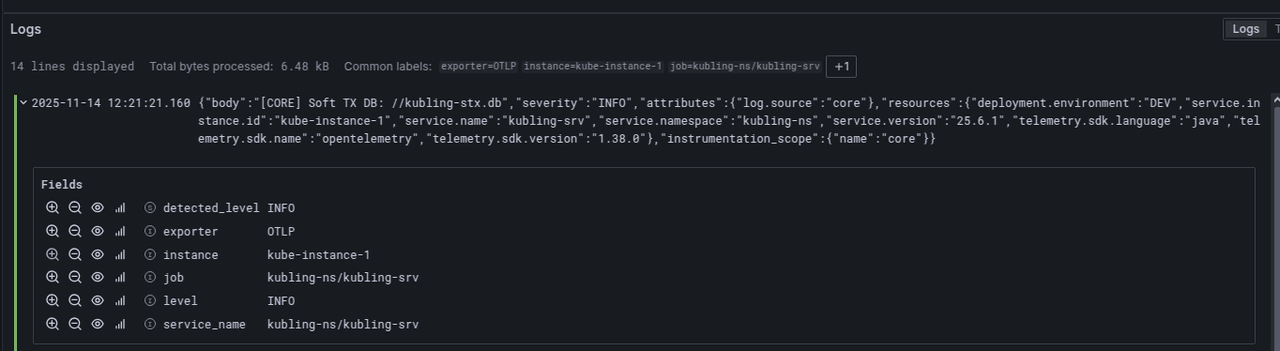
This example comes from the CORE handler, reporting the path of the Soft TX database.
A few important observations:
- The service name is composed of the
namespaceandserviceNamedefined in yourapp-config.yaml. - The instance name identifies this particular Kubling instance within your topology or federation.
- The
log.sourceattribute allows filtering by handler type (core,script, oragentic).
This value is also added to theinstrumentation_scopefor compatibility with OpenTelemetry semantics.
Explore Metrics
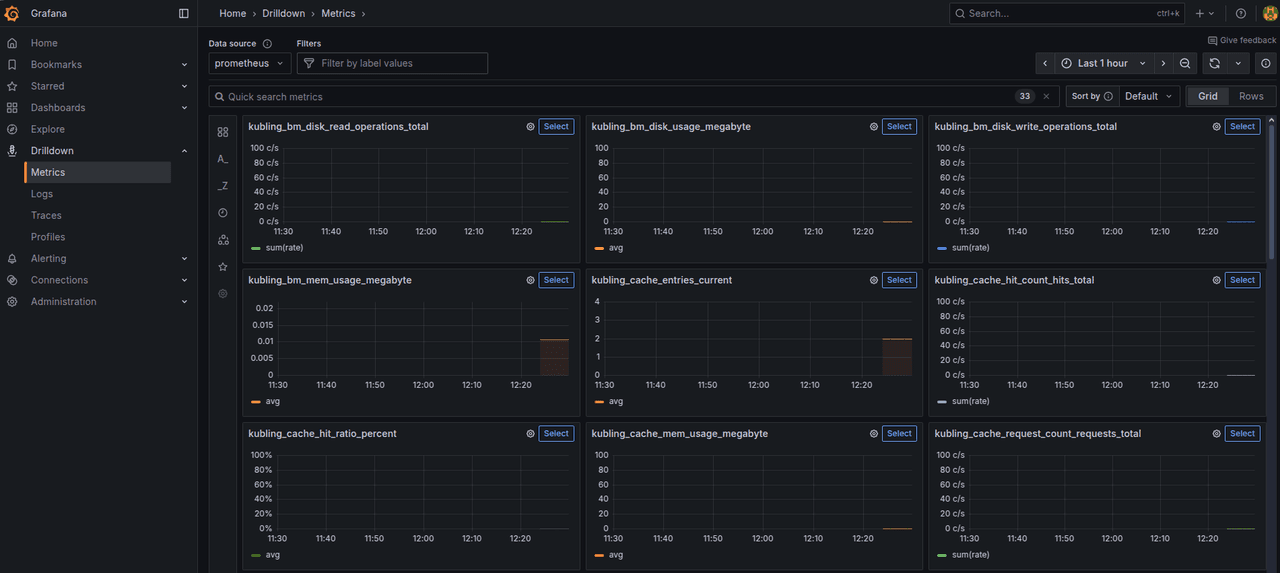
Metrics are the simplest signal to inspect, since Grafana’s UI is optimized for them.
To quickly confirm that metrics are flowing, go to Drilldown → Metrics.
Grafana will immediately show you all metrics exposed by Prometheus through the Collector, without requiring any dashboard configuration.
A Note About How Grafana Displays Metrics
If you are not familiar with Prometheus-style metrics, some values in Grafana may look confusing at first.
This is because Grafana does not show the raw metric by default, it applies an operation depending on the metric type and the selected time range.
For example:
-
The metric
kubling_bm_mem_usage_megabyteis defined by Kubling as a gauge expressed directly in megabytes.
However, when you view it in Grafana’s Metrics Explorer, Grafana automatically shows the average value over the selected time range.
This means you are not looking at the real, instantaneous value, but the “average memory usage over the last N minutes”. -
Something similar happens with counters when Grafana applies functions like
rate(),sum(rate()), orincrease()automatically depending on the panel type.
For example, if you inspect a metric likekubling_js_executions_threads_total, the raw value is a monotonically increasing counter.
Grafana often defaults torate(kubling_js_executions_threads_total[5m]), showing threads per second” instead of “total threads created” (remember that in this metric each thread represents a JS execution context).
These transformations are correct from a Prometheus perspective, but they can be surprising if you’re expecting the raw metric values.
If something looks off, always check:
- the query function Grafana is applying,
- the time window being used,
- whether Grafana is showing Average, Last value, Max, etc.
How to effectively read traces
Using the Kubling instance described earlier (the one with two Kubernetes data sources, kube1 and kube2), let’s execute a simple query:
SELECT * FROM kube2.DEPLOYMENT;
Now open Grafana → Explore → Tempo.
You should see a new trace at the top of the list, with a structure similar to the following:
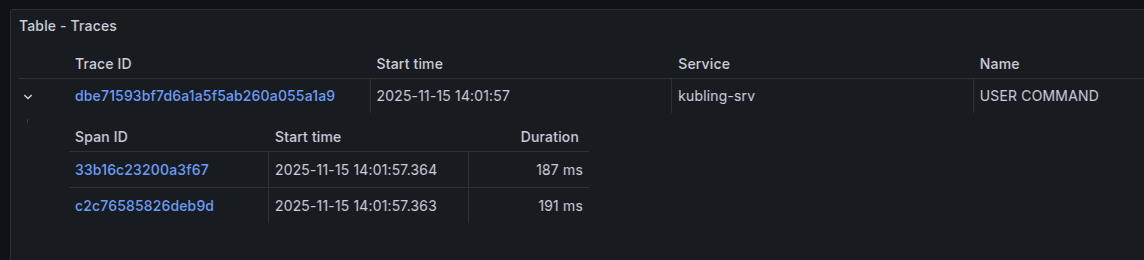
Clicking the Trace ID opens the detailed view.
This is where the information becomes useful.
Understanding the span structure
This trace contains two spans:
-
USER COMMAND
Represents the command received by Kubling.
This includes any work done during the initial admission parsing phase
(more details in the architecture documentation). -
SRC COMMAND
A child span that represents the execution performed against the data source. In this case, the Kubernetes API behindkube2.
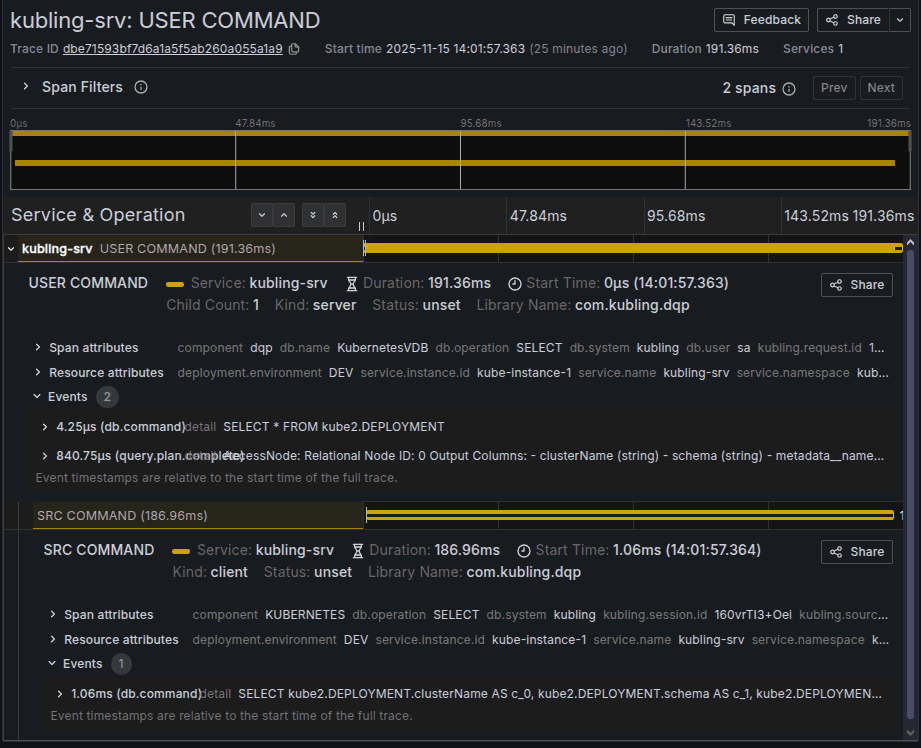
Because Kubernetes (and other non-SQL systems) do not accept SQL pushdown, the engine does not translate the query into SQL.
Instead, Kubling generates the appropriate API operations to fetch the corresponding Kubernetes objects.
This translation process is out of scope for this article, but we will cover it separately in a dedicated deep dive.
How to read durations and identify behavior
Understanding how these spans relate to each other is essential when debugging performance or diagnosing federation behavior:
- The
USER COMMANDspan represents the entire lifecycle of the query. - The
SRC COMMANDspan usually covers most of that time and starts slightly after the parent span begins.
In practice:
- If the
SRC COMMANDis long, the bottleneck is the remote system (latency, API responsiveness, network). - If the gap before or after
SRC COMMANDgrows, the overhead is inside Kubling’s engine (planning, parsing, merging result sets, waiting times due to full queues, etc.).
Tempo’s timeline makes this relationship easy to visualize:
a healthy request shows a near-perfect alignment between parent and child spans, with only a small offset at the beginning.
Events and advanced debugging
Each span contains Events, which record internal internal information extremely useful for deep debugging. For more details, consult the tracing documentation.
Testing multiple sources
Let’s execute a query that touches both Kubernetes clusters so we can start observing how a real federation behaves:
SELECT * FROM kube1.DEPLOYMENT
UNION ALL
SELECT * FROM kube2.DEPLOYMENT;
DBeaver reports an execution time of about 330 ms, which may look surprising given that the previous single-cluster query took ~191 ms and Kubling parallelizes requests across data sources.
So the natural question is: what happened?
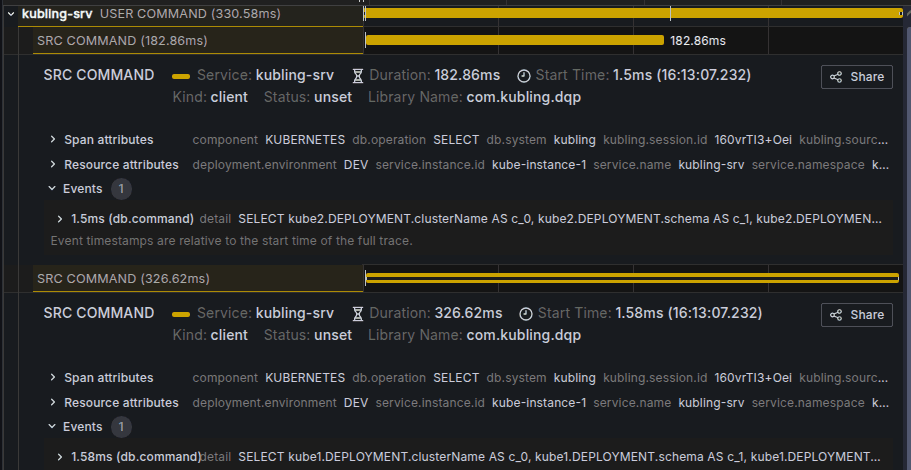
The trace from Grafana gives us the explanation.
This is a typical scenario when interacting with remote APIs.
The SRC COMMAND span shows a total duration of ~330 ms, and almost all of that time was spent waiting on the request to kube1.
The second source (kube2) responds much faster, but the overall query cannot complete until both data sources finish.
This illustrates one of the core characteristics of federated systems:
The total execution time is determined by the slowest downstream data source.
Because both requests run in parallel, we can immediately discard engine-side causes such as:
- buffer manager pressure
- slow merge of result sets
- an overloaded SQL worker pool
The latency is external: the downstream system (kube1) simply responded more slowly.
From this point, we encourage you to experiment with more queries (especially those involving complex JOINs) to better understand how to interpret traces and how a federated topology behaves under different workloads.
Conclusion
Although this was a simple example that only scratches the surface, we learned how straightforward it is to configure Kubling to emit telemetry and how powerful Grafana becomes when combined with logs, metrics, and traces.
One important topic not covered here is correlation: how to connect what you see in logs, traces, and metrics when a query behaves unexpectedly.
This is a deeply valuable skill, and we’ll leave the exploration to you for now.
Until the next post, hope you enjoy experimenting with Kubling!